
VeoWork Timesheets is a time tracking solution for modern teams working in Azure DevOps.
- Work where your team works. Record time against work items, review team timesheets, and track budgets in Azure DevOps. Connected AI assistants can help with time entry and reviews under the same VeoWork permissions.
- Bring your history with you. VeoWork’s built-in import from 7pace Timetracker brings your time tracking history into VeoWork and leaves your source data unchanged. You can review the result before you finalize the import.
- Keep control of access and data. Your team uses existing Azure DevOps accounts, and VeoWork roles control access. Excel exports and the API let you use your time data in your own tools.
Our support team can help with setup, migration, and questions about VeoWork.
This guide covers installation, migration, settings, and the main features.
1. Install VeoWork
VeoWork runs in Azure DevOps Services. Initial setup requires a Project Collection Administrator account.
- Install VeoWork Timesheets from the Visual Studio Marketplace in your Azure DevOps organization.
- In any project, open VeoWork Timesheets → Enter.
- Accept the terms on the welcome screen to continue to authorization.
Next, configure synchronization to connect VeoWork to Azure DevOps.
For installation details, see Microsoft’s extension installation guide.
Installation overview
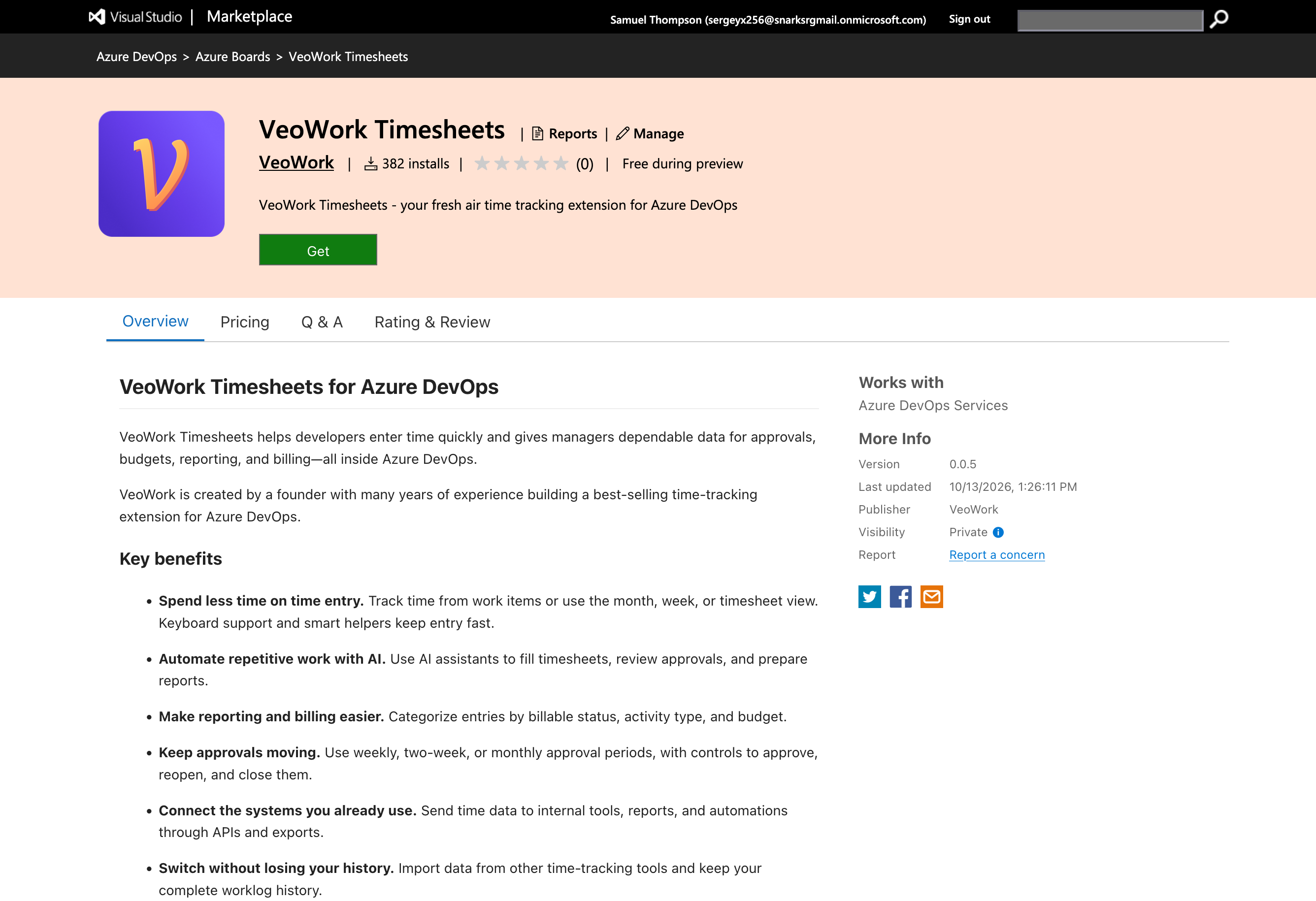
Install the extension 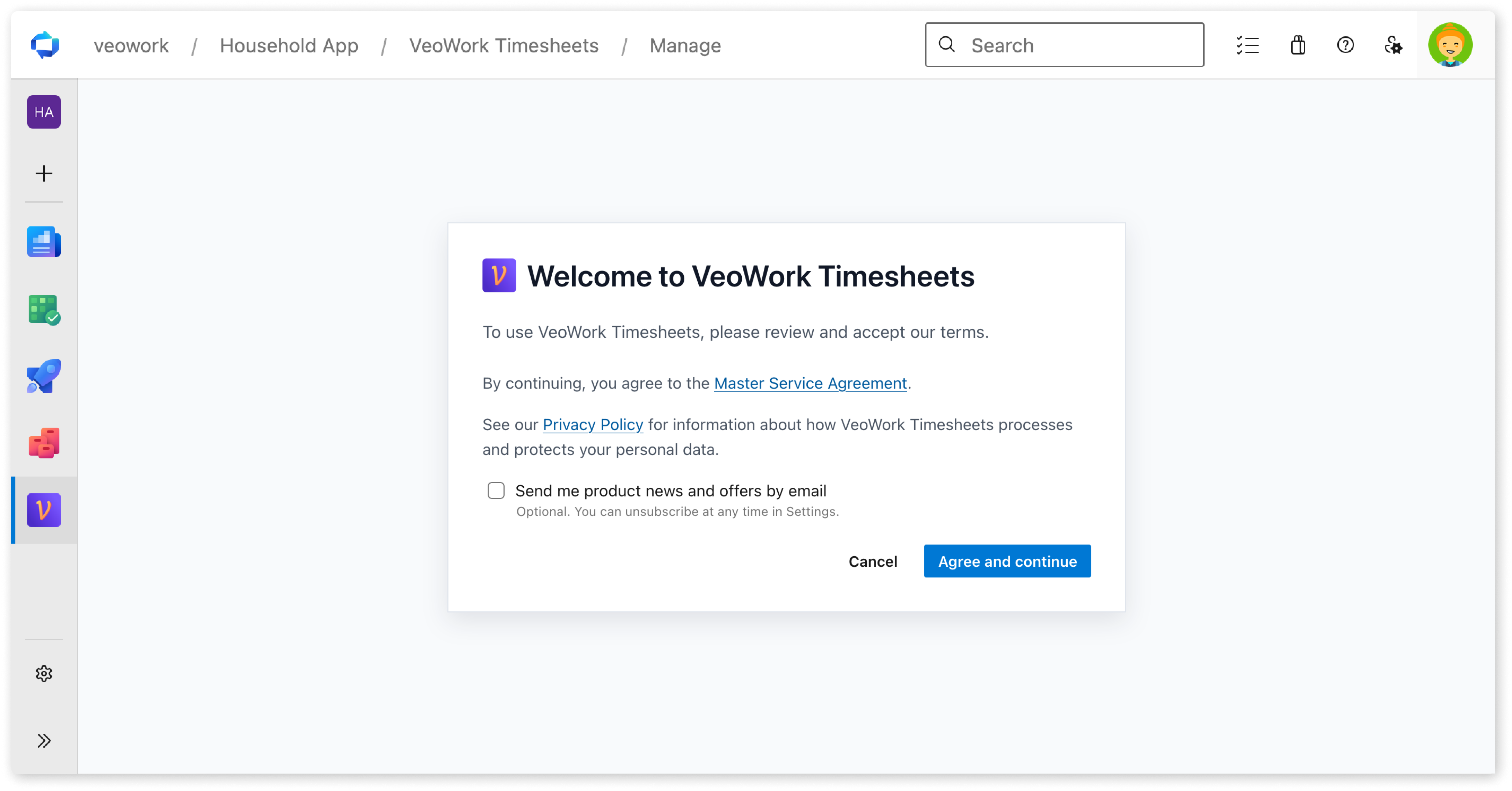
Accept the terms 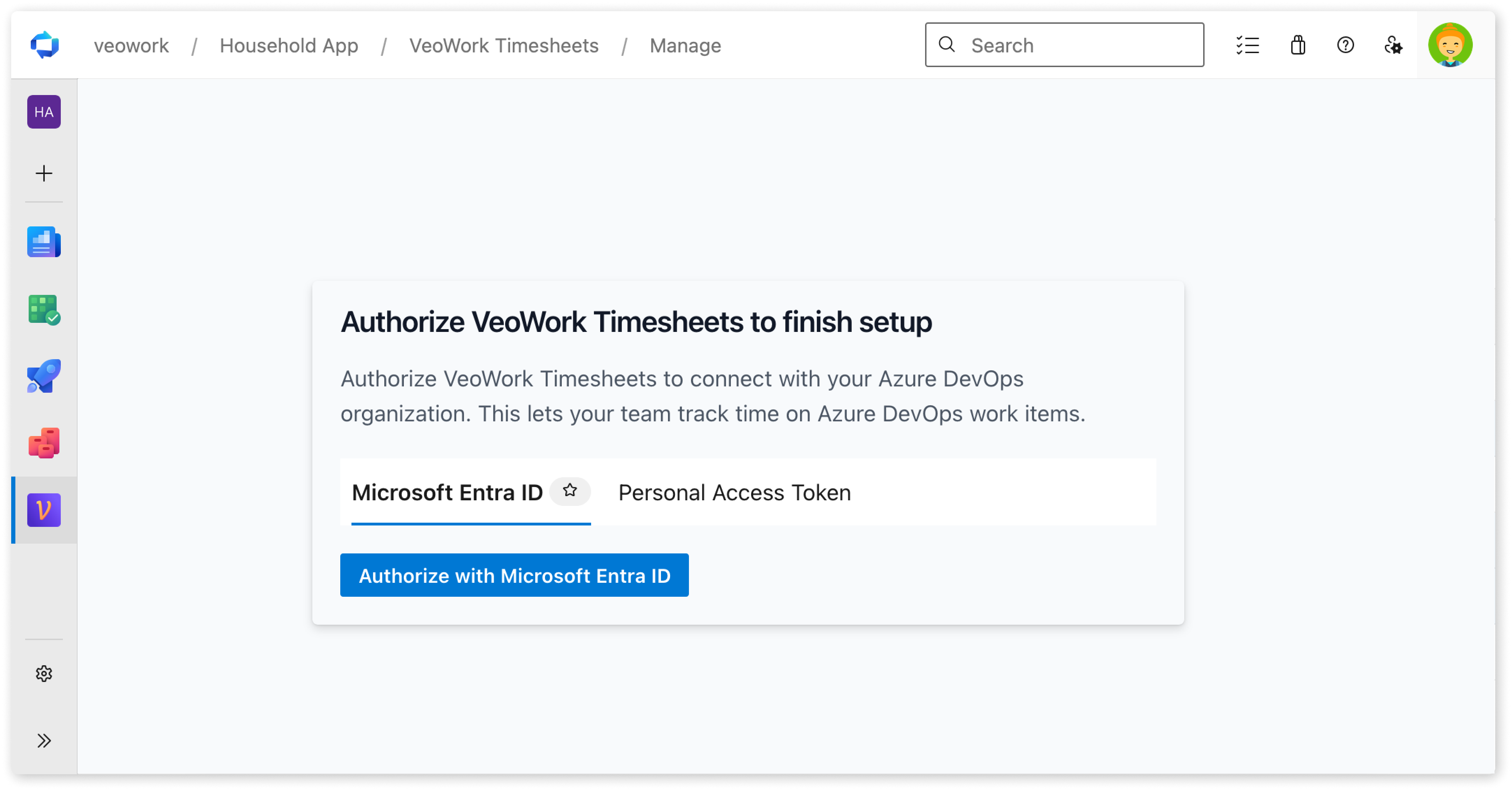
Continue to authorization
Configure synchronization
Synchronization brings your Azure DevOps projects, teams, and work items into VeoWork. Your team can link time to work items, review budget totals, and build reports from the same data.
Connect with Microsoft Entra ID (recommended)
Use Authorize with Microsoft Entra ID with the same account that you use in Azure DevOps.
VeoWork needs read access to Project and team (read) and Work items (read). Microsoft Entra authorization includes offline_access to renew the connection without another sign-in.
Use a personal access token
If Microsoft Entra authorization is unavailable, choose Personal Access Token on the authorization screen.
The personal access token (PAT) must belong to your Azure DevOps account. It must include these permissions: Project and team (read) and Work items (read).
Configure → Azure DevOps Sync shows administrators the connection and synchronization status.
Synchronization screenshots
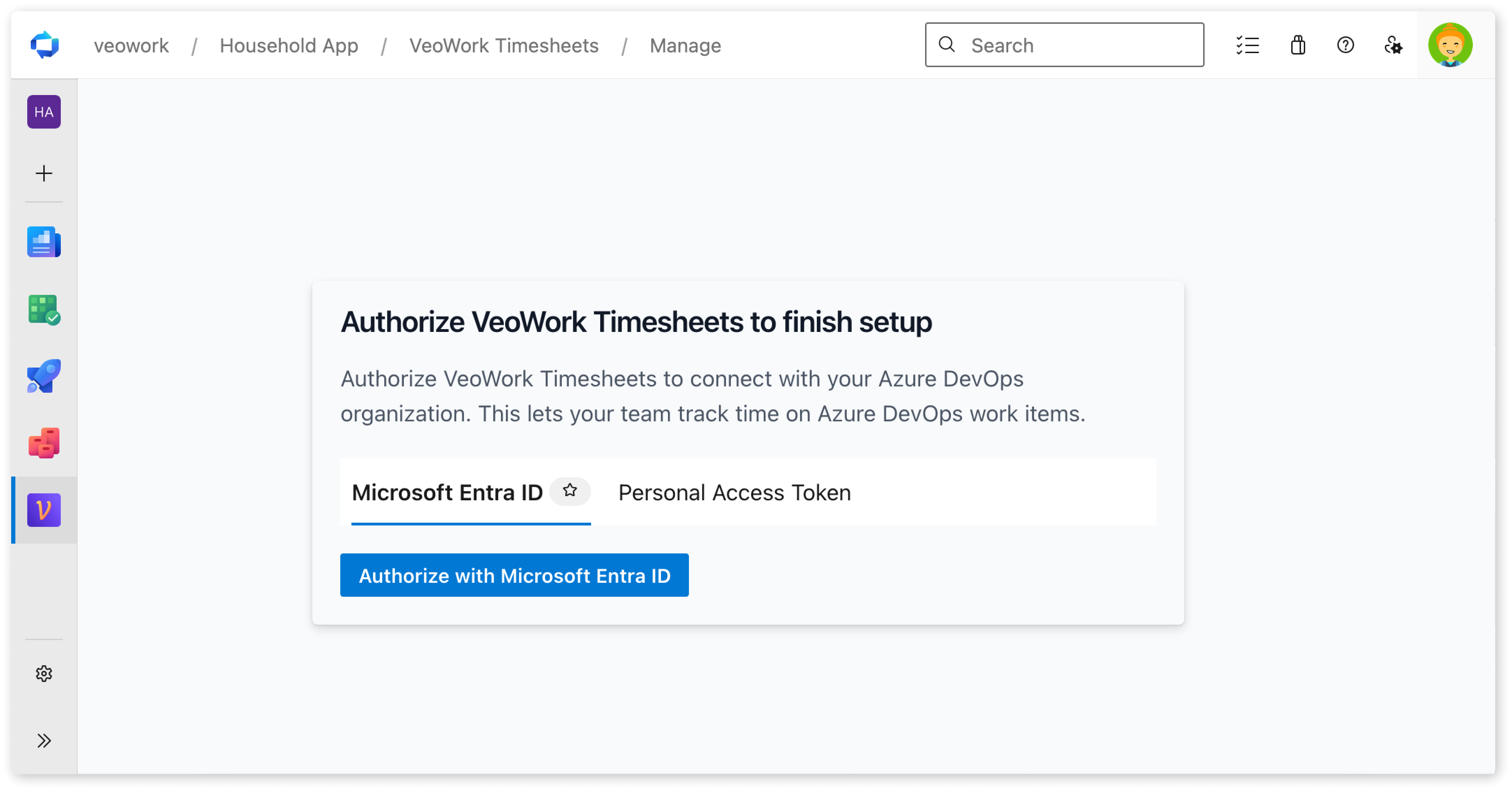
Authorize with Microsoft Entra ID 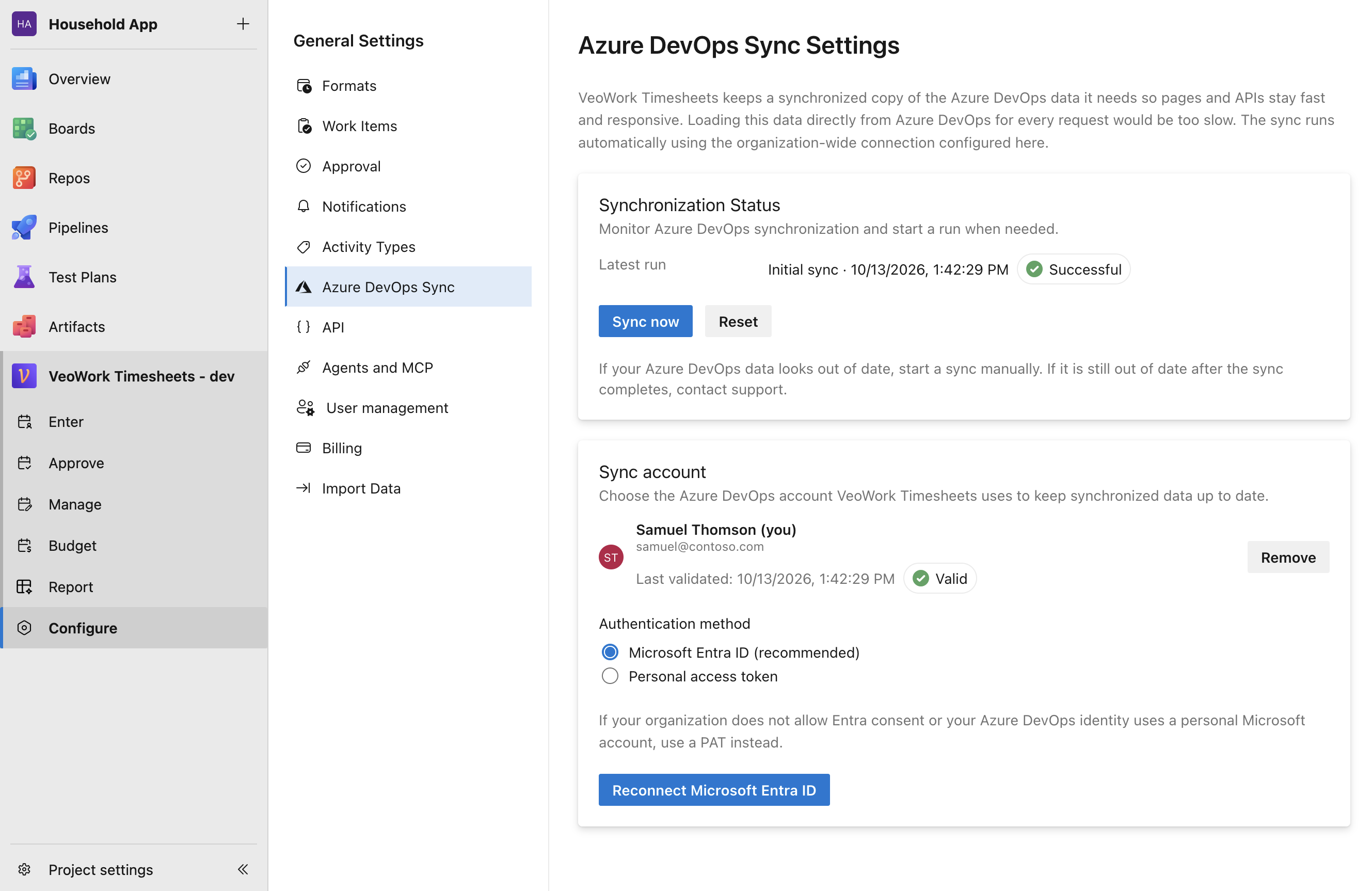
Review the synchronization status
Bring your team
Your team can use VeoWork with their existing Azure DevOps accounts.
A Project Collection Administrator manages roles and access rules under Organization settings → VeoWork Users and Billing.
Bulk update lets you import users from an Azure DevOps CSV export and assign their VeoWork roles together. You can review the matched accounts and adjust roles before saving.
Group rules set initial roles based on Azure DevOps group membership. You can choose a default role and map groups to User, Manager, or Admin.
When someone opens VeoWork without an existing user record, the group rules determine their role. Existing users, including those added through bulk import, keep their assigned roles.
Bring your team
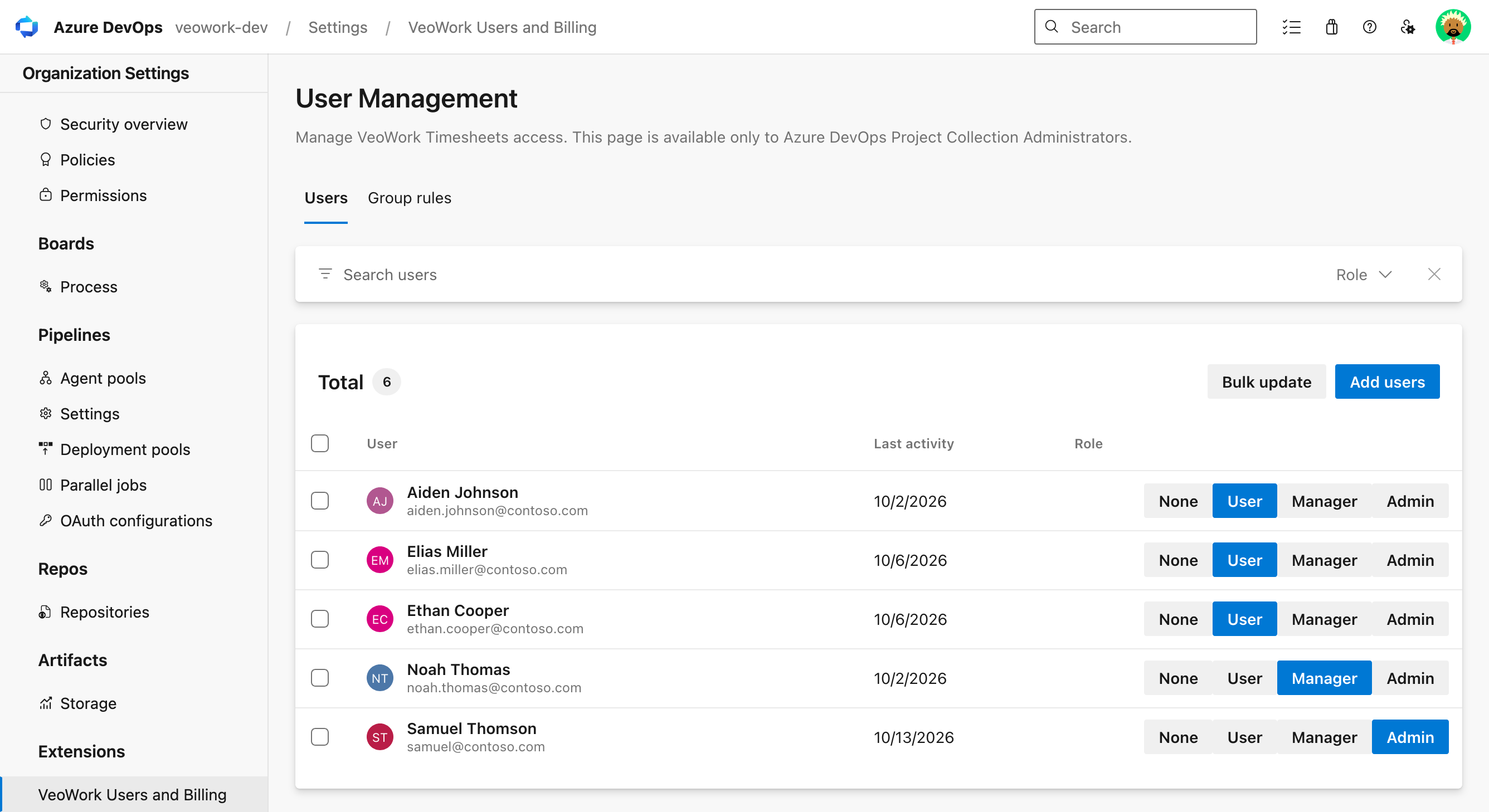
Manage users and import your team in bulk 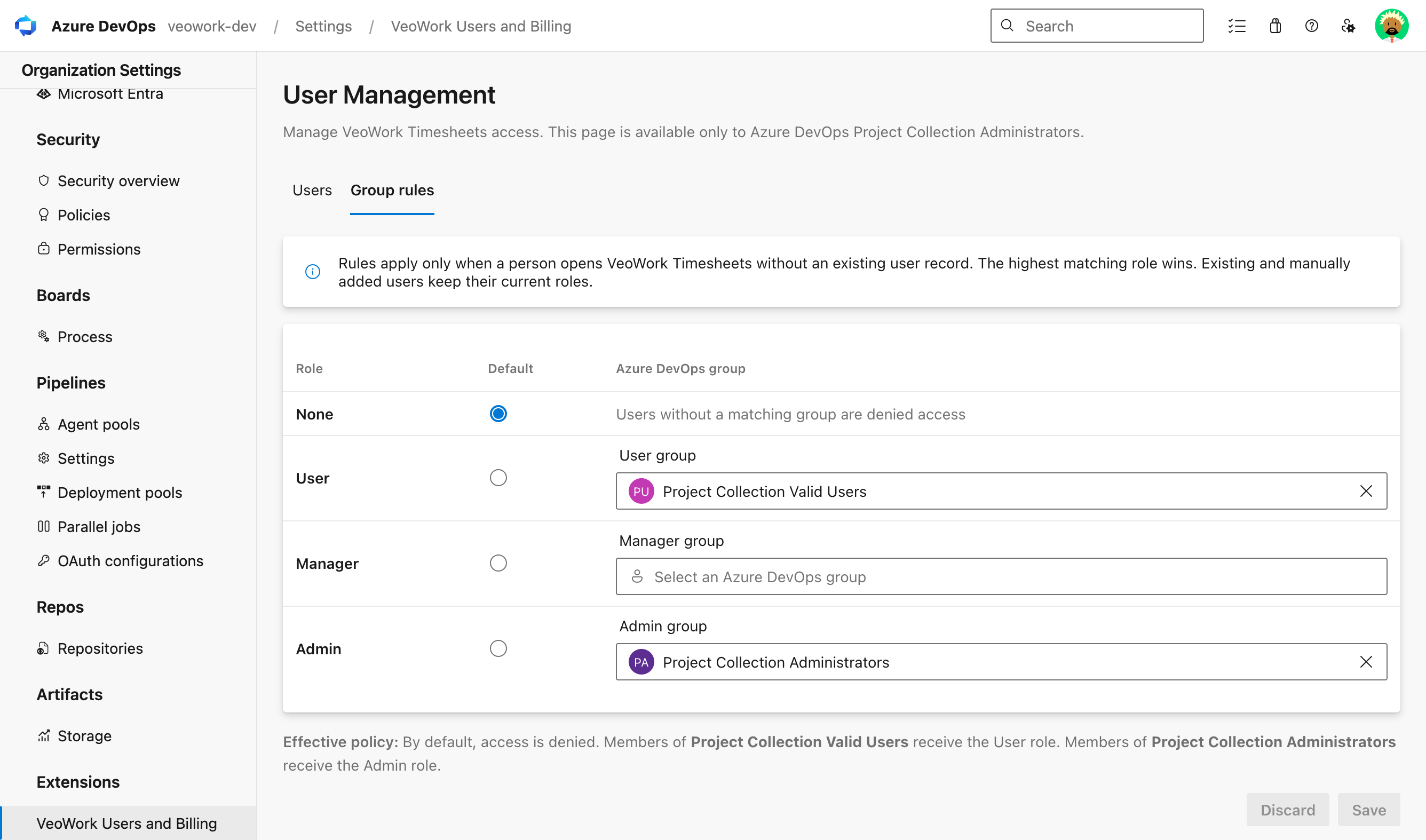
Set initial roles with group rules
If you already track time in another tool, bring your existing data into VeoWork.
2. Import data from other tools
Bring your time tracking history with you. Your team can review past entries and new work together in VeoWork. Visible history depends on your plan; see plans and limits.
VeoWork’s built-in import from 7pace Timetracker for Azure DevOps brings in users, activity types, budgets, and time entries. Imported entries keep their dates, durations, comments, billable time, and links to work items.
Admin users can start the migration under Configure → Import Data with a 7pace API token. The import runs in the background and shows progress, counts, and warnings. Your source data stays unchanged in 7pace.
You can review the result and undo the import before you finalize it. Finalize import disables undo and further 7pace imports for the organization.
For other tools, contact our team for migration help. Tell us which tool you use and what history you want to bring.
7pace Timetracker is an Appfire product. VeoWork’s import and API compatibility features are independently developed and are not affiliated with or endorsed by 7pace or Appfire.
3. Record your first time entry
Start with Enter → Add Time. Record time against a work item with a date and duration, such as 1h 30m. Activity Type, Comment, and Billable hours are optional.
The form supports keyboard navigation. Use Ctrl + Enter (Windows/Linux) or Cmd + Enter (macOS) to save.
You can also record time directly from a work item’s VeoWork tab. Your entries appear in the Month, Week, and Timesheet views on the Enter page.
Available in AI assistants
You can record time in ChatGPT, Claude, or Microsoft 365 Copilot with VeoWork connected.
Try:
Add 4h to work item 30 for today.
4. Explore the features
Enter
Enter gives you a clear view of your time, from individual entries to daily and weekly totals. The Month and Week views show entries on a calendar. The Timesheet view organizes them in a grid.
You can add or correct entries, categorize work with activity types, and mark time as billable. If your organization uses approvals, you can submit your timesheet for the period from this page.
You can review your timesheet and submit it to an approval manager through a connected AI assistant.
Try:
Show my timesheet for this week.
Log 8h for yesterday across my active work items.
Approve
Approve helps approval managers see which timesheets need attention. Status filters show whose time is ready for review and who still needs to submit it.
Approval managers can review each person’s entries, approve the timesheet, or reopen it for changes. When the review is complete, you can close the whole period. No one can edit time entries in a closed period.
Three approval cadences fit different review schedules: Weekly, Every two weeks, and Monthly. Administrators set the cadence under Configure → Approval.
Access to Approve requires an active Approval Manager assignment. Administrators add approval managers under Configure → Approval → Approval managers.
Approval managers review timesheets sent to them. With Is Global enabled, a manager can view and approve every submitted timesheet, regardless of its assigned manager.
Team members submit time from Enter → Send for approval. Each submission requires a selected approval manager in the Send for approval to: field.
Approval managers can review and approve team timesheets through a connected AI assistant. The same approval permissions apply.
Try:
Show timesheets waiting for my approval.
Review last week's timesheets that need my approval.
Approve overview
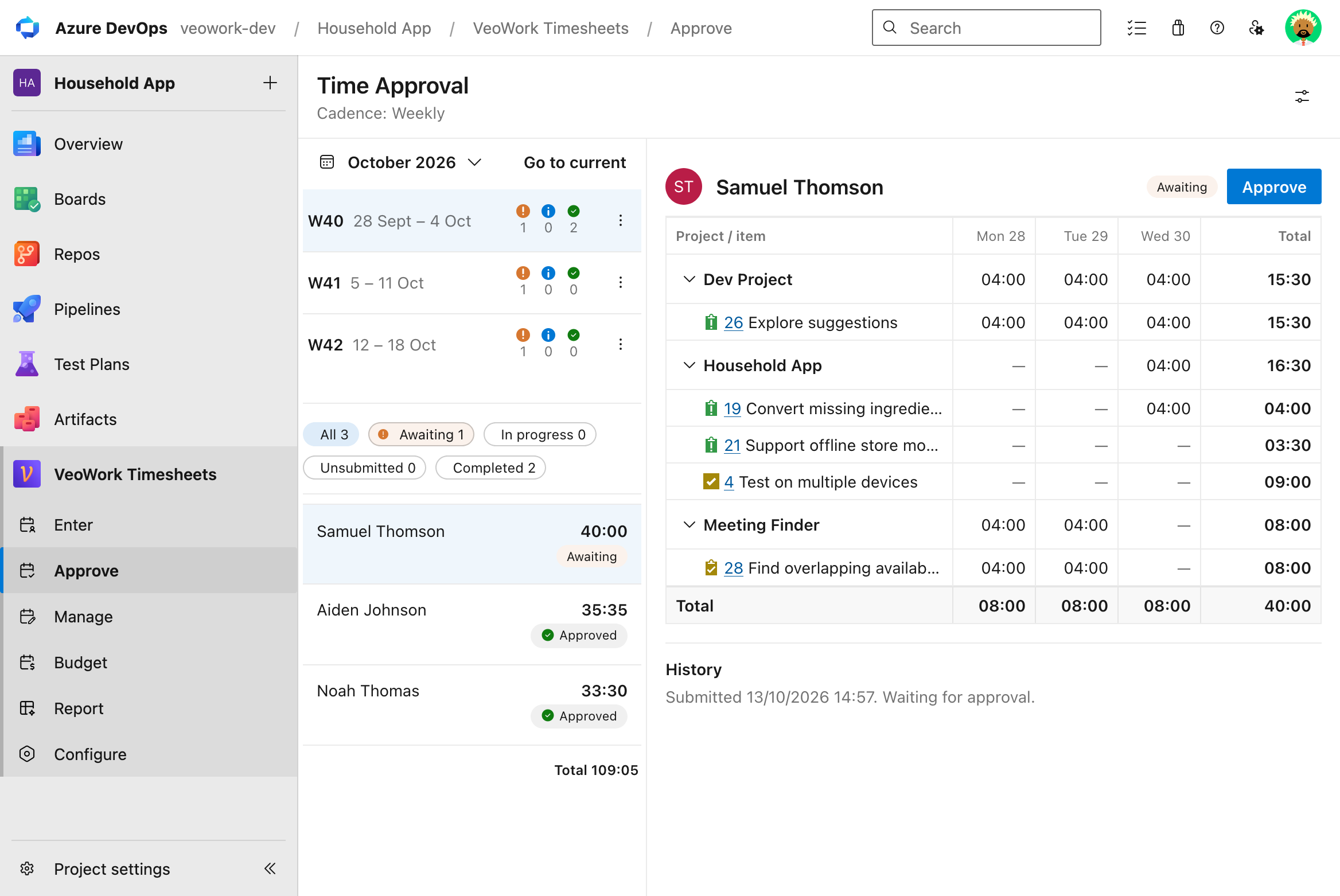
Team approval statuses and a timesheet ready for review 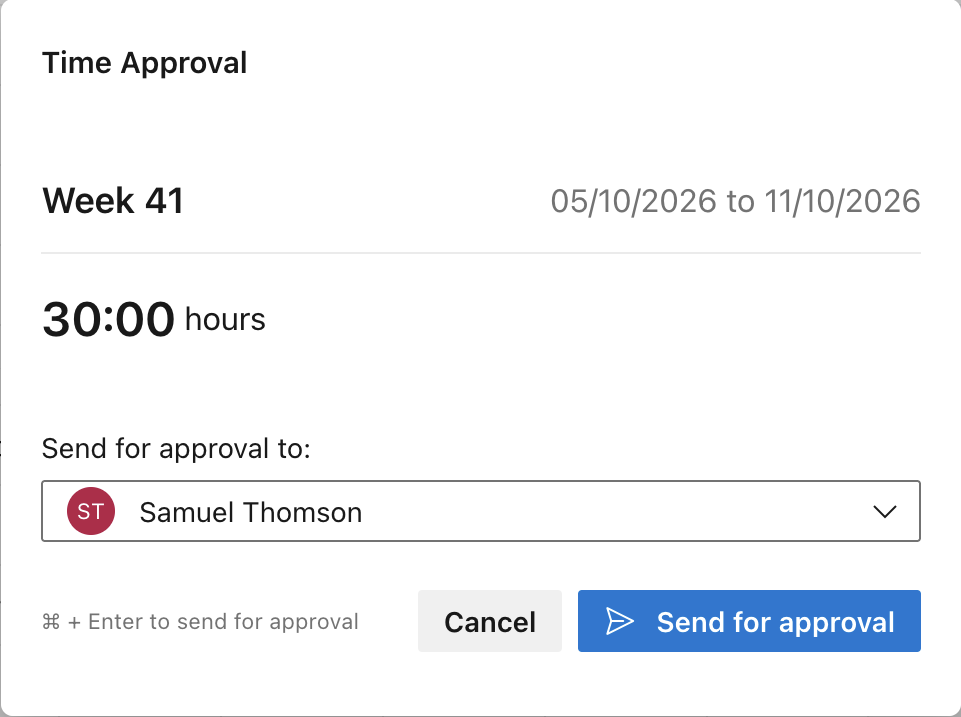
Send time for approval with an approval manager selected 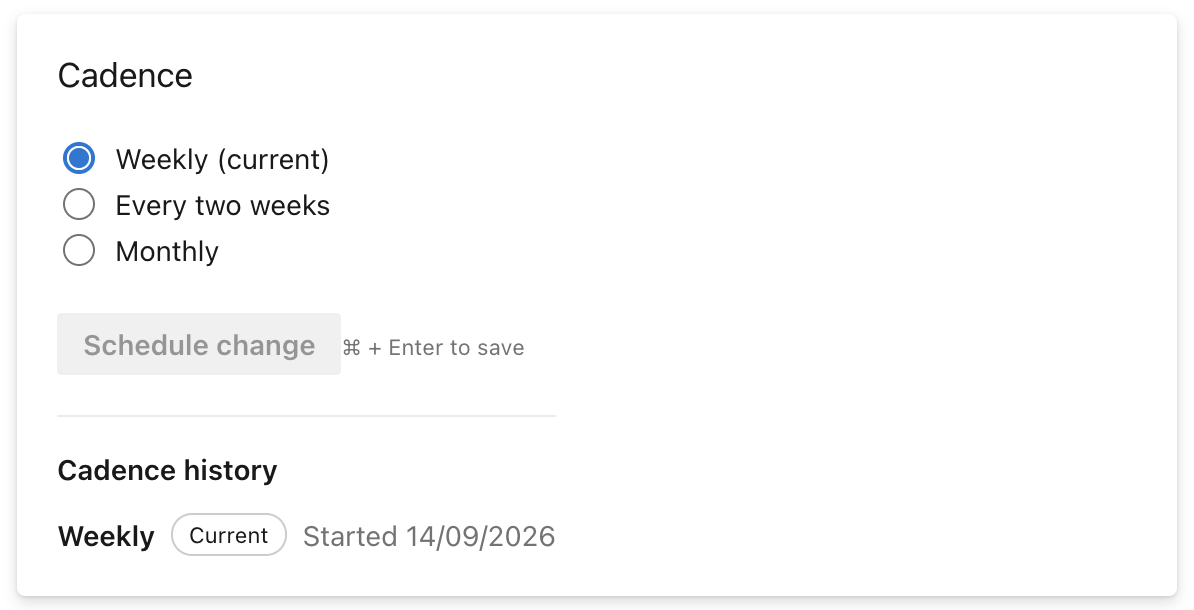
Approval settings 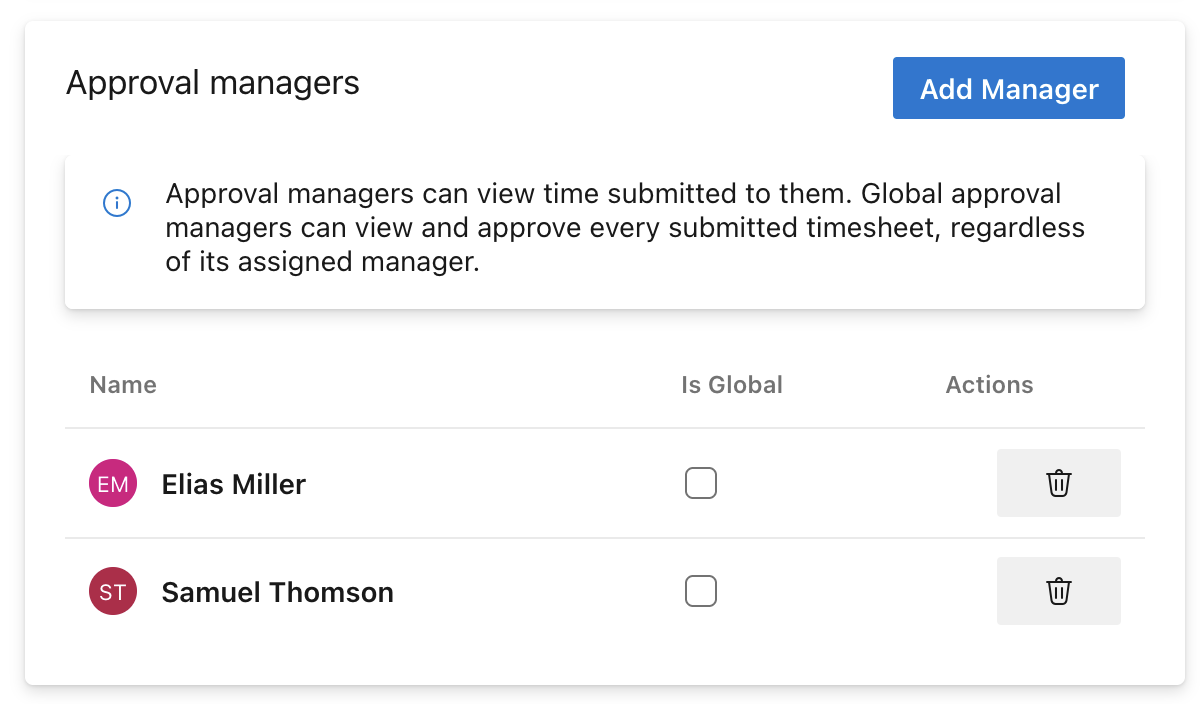
Approval managers settings
Manage
Manage brings time entries together for review, corrections, and export. Date ranges, filters, and groups help you focus on the work you need to review. You can choose which columns appear in the table.
You can edit one entry or update several entries at once. Excel exports give you a copy for further analysis or sharing.
Everyone can open Manage. Users with the User role see only their own time. The Manager and Admin roles can also view team time.
Manage overview
Manage demo 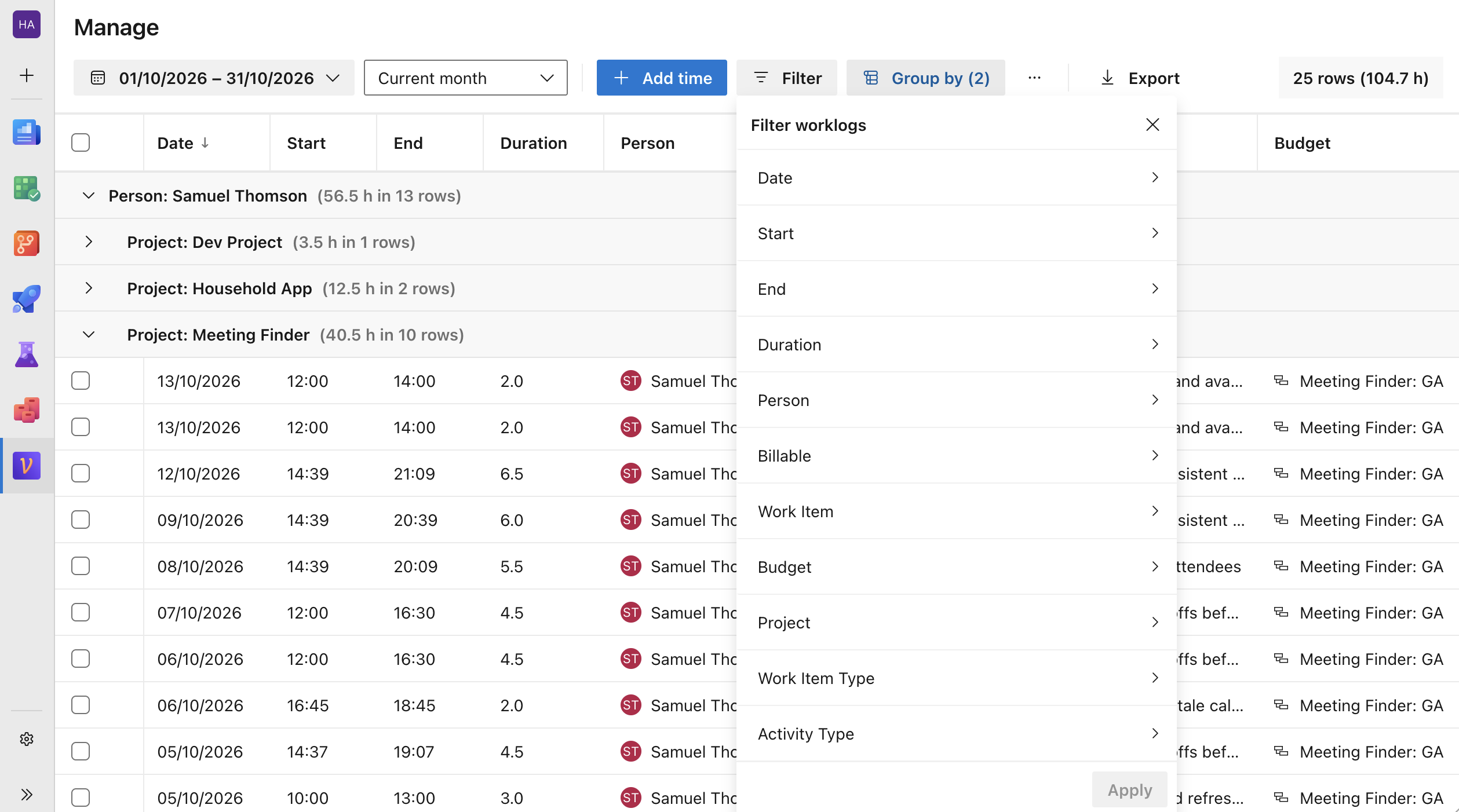
Filter and group time entries 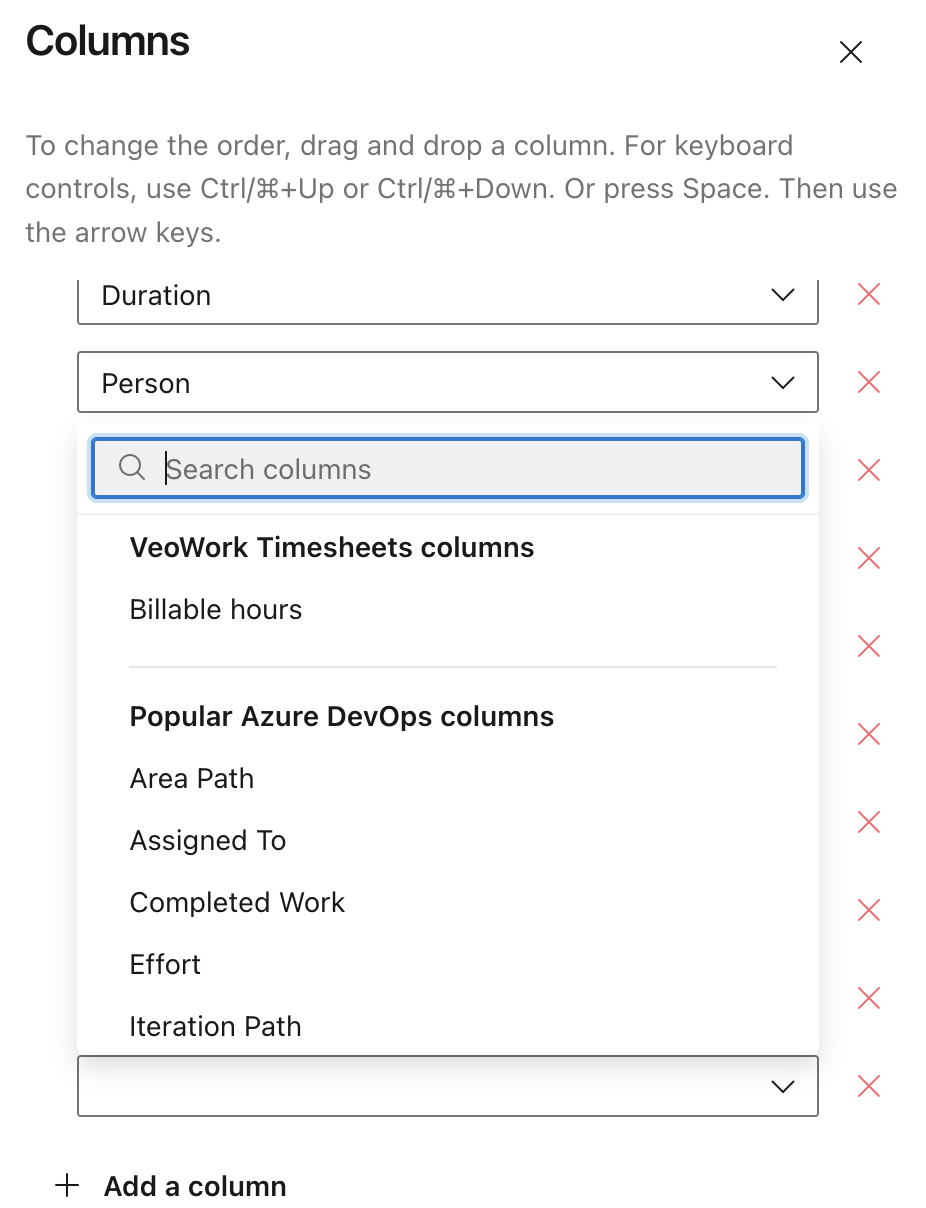
Choose and reorder columns
Budget
Budget shows how recorded time compares with your plan. Each budget combines planned hours with a set of work items. You can review budget usage and the work items and time entries behind each total.
You can update planned hours or close a finished budget. When work resumes, you can reopen the budget.
A work item’s tab also shows its budget, recorded time, and planned hours. Managers and admins can assign or change the budget directly from this tab.
Budget assignments let you analyze recorded time by budget in your own reports. Include the Budget column in Excel exports, or retrieve budget assignments through the API for use in your reporting tools.
The Budget page requires the Manager or Admin role.
Budget overview
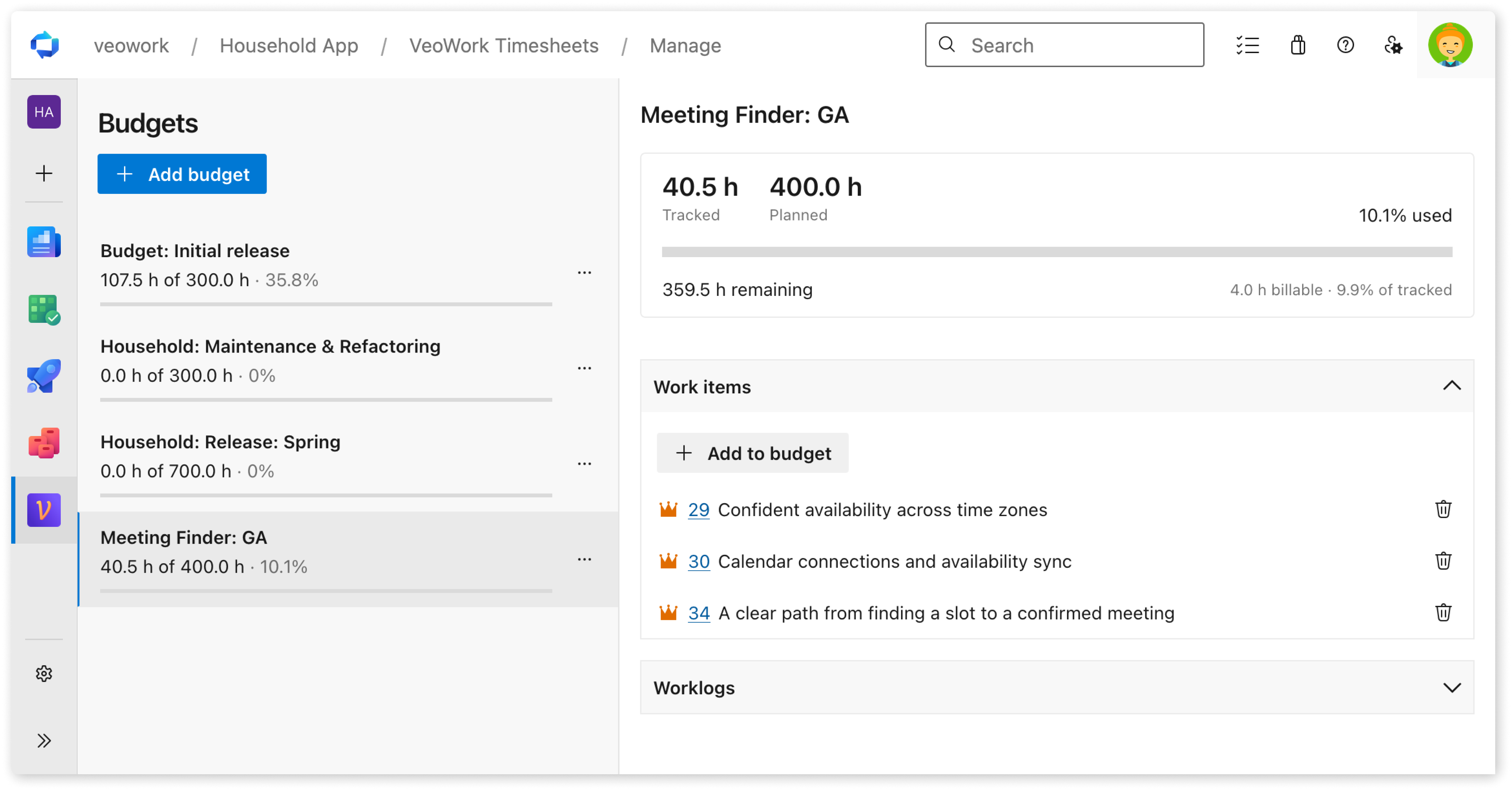
Budget overview 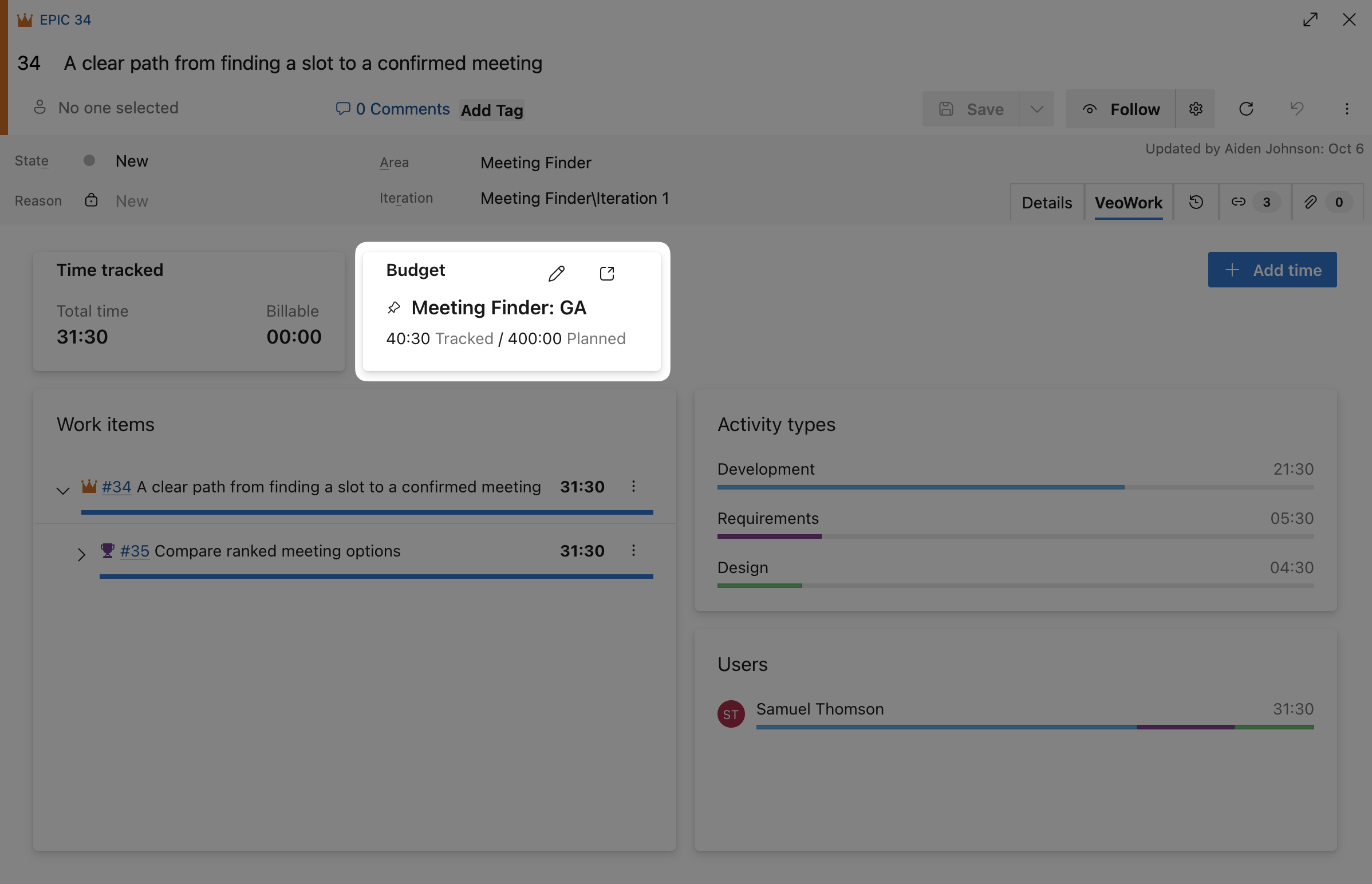
Budget usage and quick assignment in a work item
Report
Report turns your time data into Excel reports with source data and pivot tables. Templates give you a starting point. You can adapt a template with filters, grouping, and total, billable, or non-billable hours.
Each export creates a snapshot of the report settings and data for that period. Export history shows when each snapshot was created and whether it is ready to download. You can download a ready snapshot again or use Export latest data to create a new one. Earlier snapshots stay unchanged.
See Get your data out for Excel downloads, planned report connections, and API access.
You can ask a connected AI assistant to prepare a report from billable time entries. The same VeoWork permissions apply.
Try:
Prepare a billable activity report for this month.
Report preview
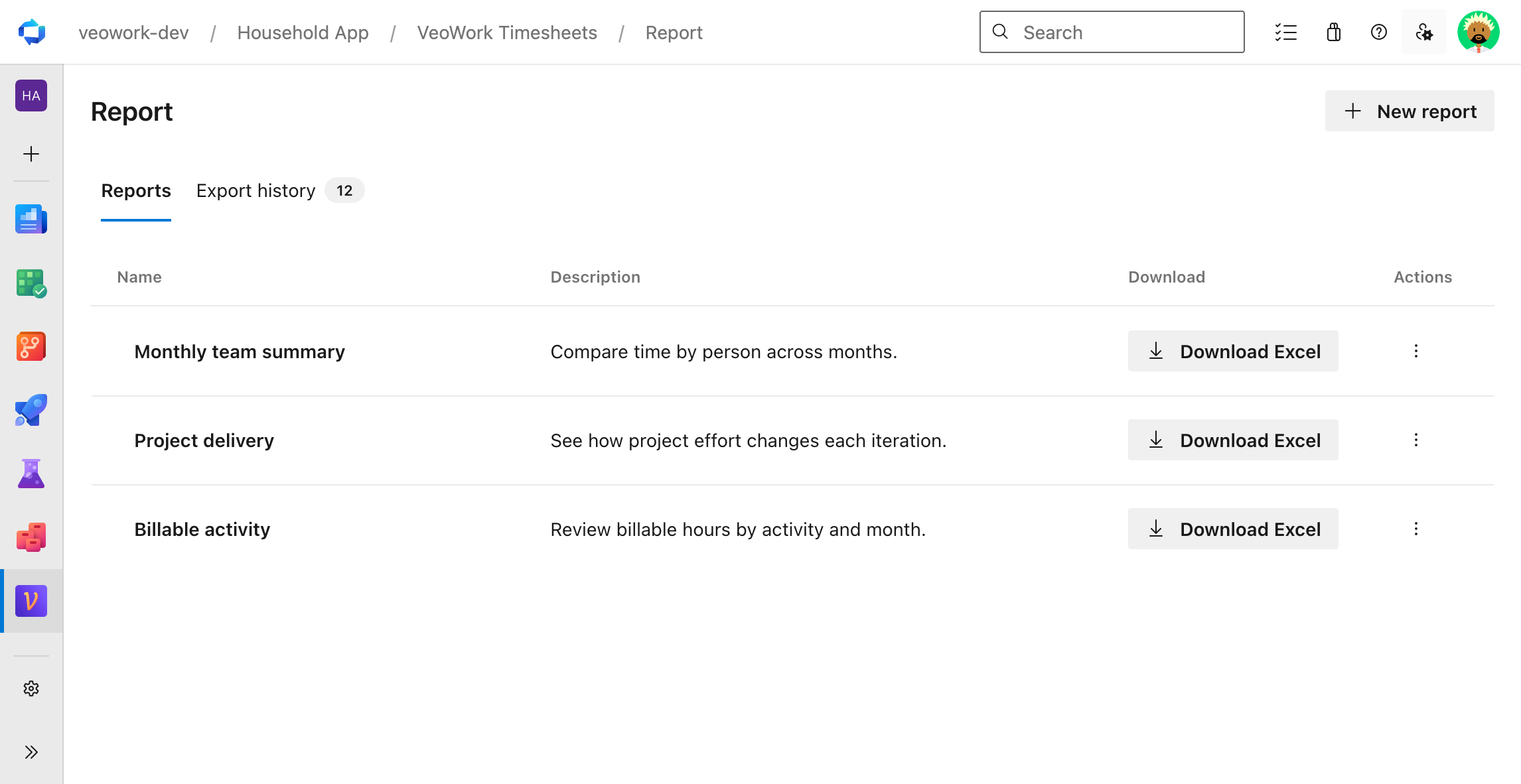
Report templates, an Excel report with a pivot table, and API access 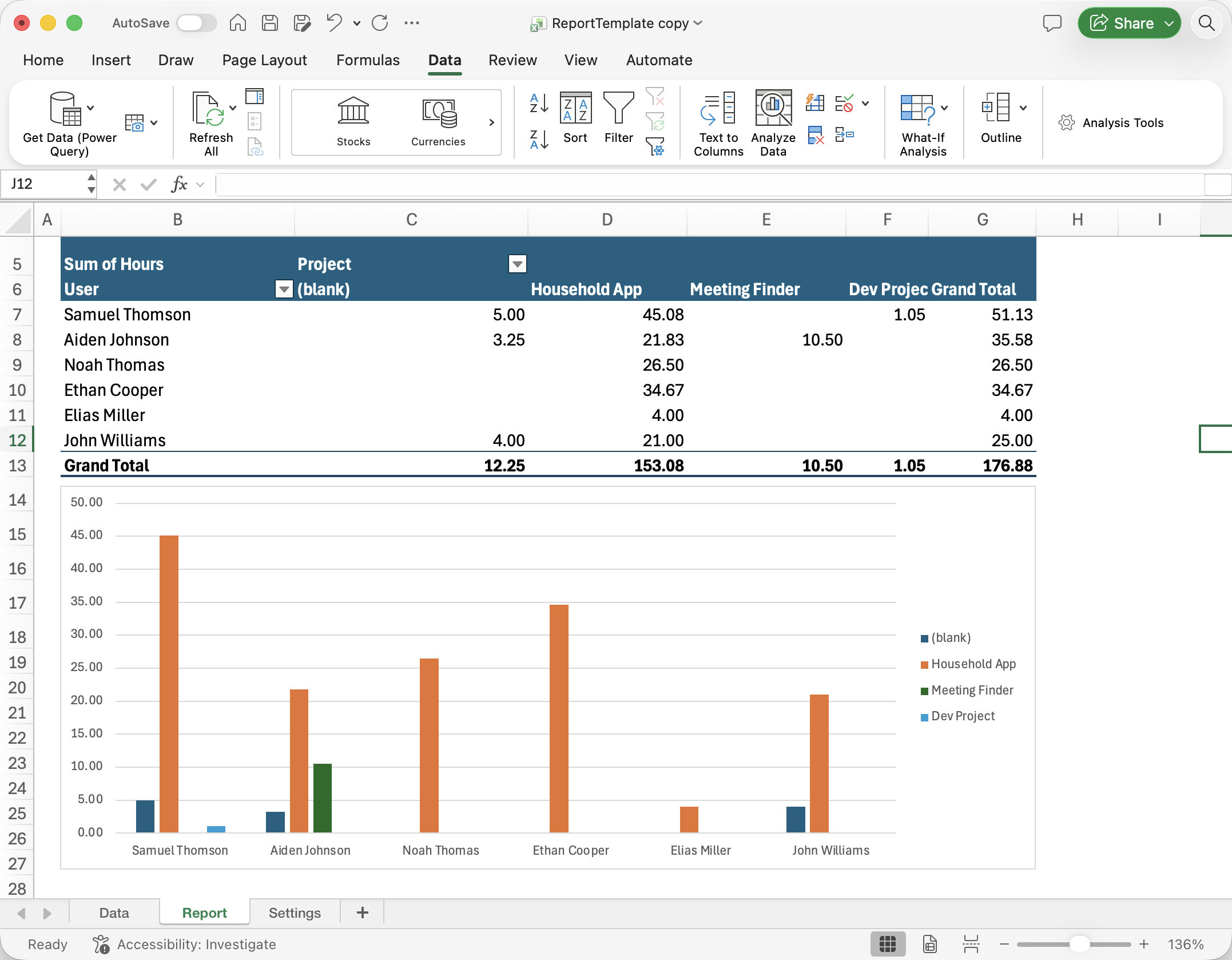
Excel report 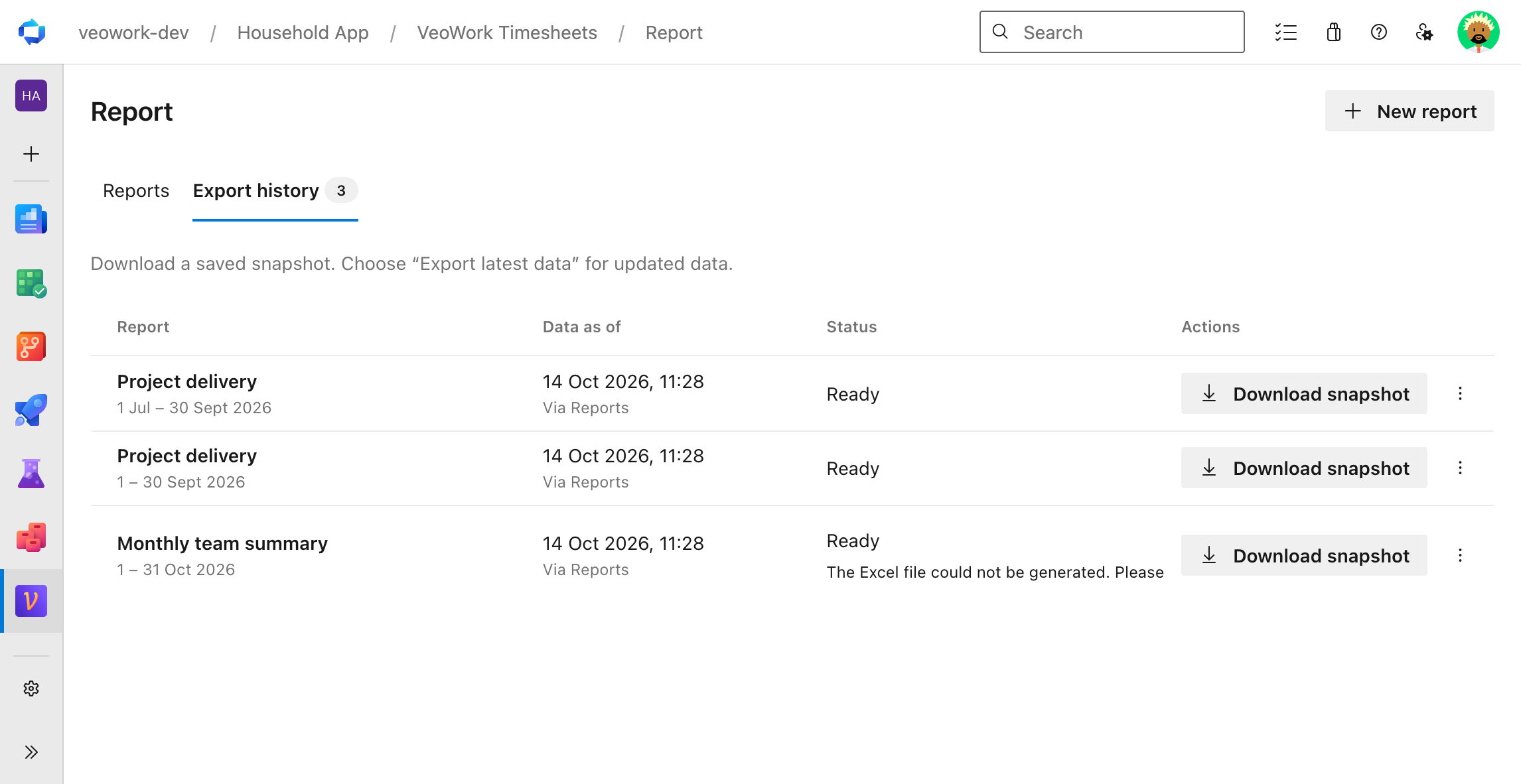
Export history
5. AI assistants
Record time and review timesheets from the AI assistant you already use. VeoWork connects to ChatGPT, Claude, Microsoft 365 Copilot, and Codex.
Your assistant can find work items, record time, review timesheets, and submit or approve them. The same VeoWork permissions apply.
You can also ask for a report from your time entries, such as a summary of billable activity for the month.
Configure → Agents and MCP provides the MCP endpoint for your assistant. The connection uses your Microsoft account and the Azure DevOps organization you select. Each connection gives the assistant access to one organization.
What your assistant can do
Ask your assistant to bring time entries and Azure DevOps work items together, highlight records to check, or prepare an Excel report without manually exporting data first.
| Benefit | Example request |
|---|---|
| Finish your week with less backtracking | “Draft my week timesheet, I worked Mon-Fr 8 hours a day, fetch my active items and add time evenly on them” |
| See what needs clarification before approval | “Review last week’s timesheets waiting on my approval. Break down hours by project and work item, and flag anything I should follow up on. Apply any saved VeoWork review rules.” |
| Spend less time preparing reports for finance | “Finance needs September’s engineering allocation across this org. Make an Excel report with hours and FTEs per epic, compare it with August, and flag time you can’t map to an epic. Use 160 hours as one FTE-month for this report.” |
For help recalling your week, if your assistant also connects to GitHub or your calendar, add: “Use my GitHub activity and calendar events to help me recall what I worked on.”
Summaries for everyone in the organization require the Manager or Admin role. Reviewing other people’s timesheets requires an active Approval Manager assignment. Work-item activity helps you recall your work; you provide any missing hours. If your request leaves details open, the assistant can ask for clarification.
Custom instructions
Custom instructions give your assistant context for time entry and timesheet reviews. You can save your preferences once and reuse them across tasks.
Configure → Agents and MCP → Agent instructions has two sets of instructions:
- Personal instructions guide assistants acting on your behalf in this organization. For example: “Use 08:30 as my default start time.”
- Organization instructions provide shared defaults for everyone in the organization. Only Admin users can edit them. For example: “During timesheet reviews, flag entries without an activity type.”
Your current request takes priority over saved instructions. Personal instructions take priority over organization defaults.
You can edit instructions in VeoWork or ask your connected assistant to remember a preference.
Sample:
Apply these defaults unless I give different instructions:
- Use 09:00–18:00 as my working day.
- Reserve 12:00–13:00 for lunch. Exclude this break from logged time. If an entry crosses the break, split it around the break.
- Start the first worklog of the day at 09:00.
- Place each new worklog immediately after the last existing worklog for that day. Skip the lunch break.
- For example, after an 08:00–10:00 worklog, place a new two-hour worklog at 10:00–12:00.
- When I ask you to log time, use the suggested work item and its suggested date.
- If several work items are suggested, divide the requested duration equally between them. Use the suggested date for each item.
Agent instructions
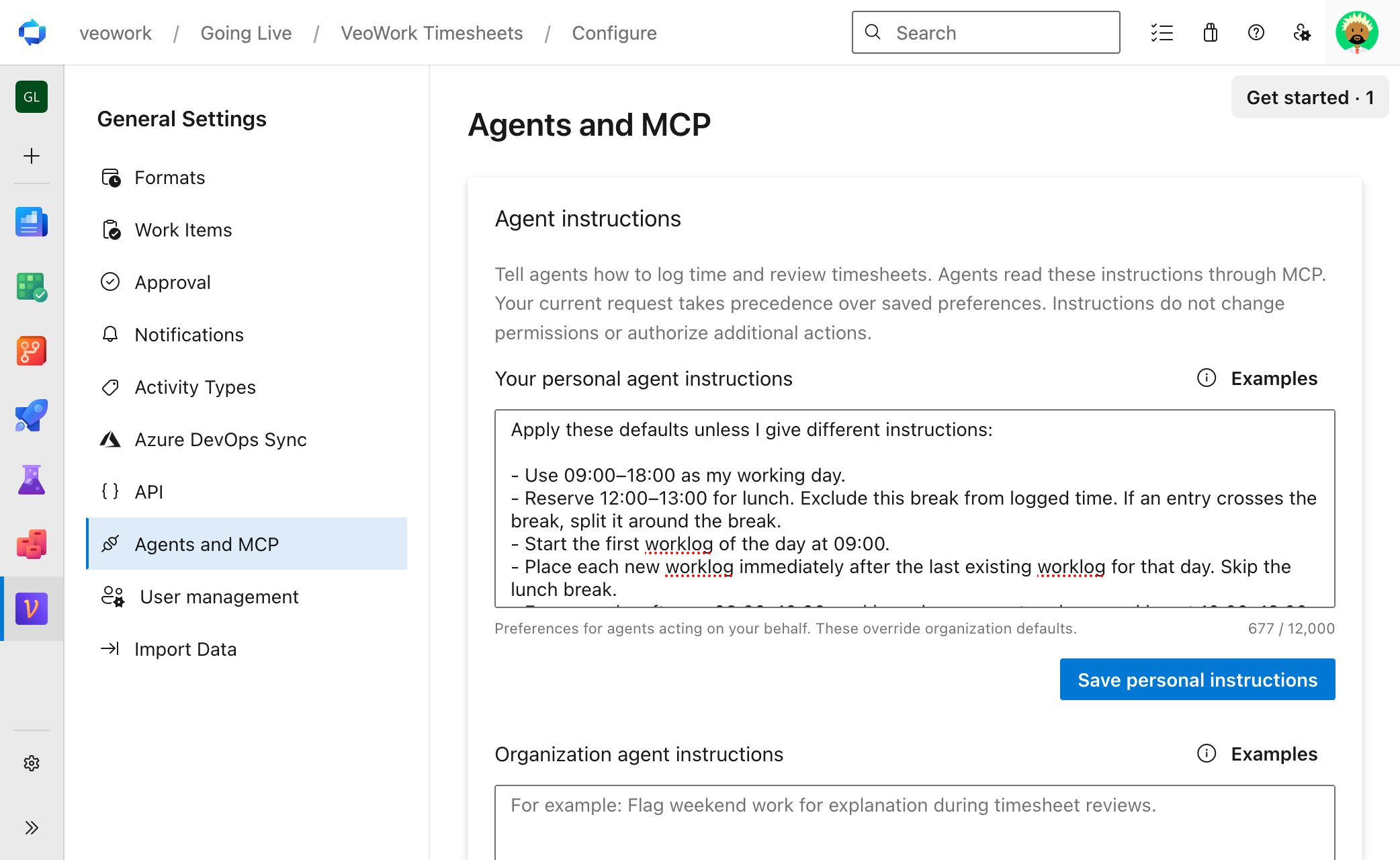
Personal and organization instructions
6. Get your data out
Take your time data into the tools you already use. Build project reports, analyze billable hours, or combine time with other business data.
Export to Excel from Manage
An Excel export gives you a snapshot of your time data for analysis or sharing. Manage → Export downloads an Excel workbook with all entries that match your date range and filters. The workbook uses your selected columns.
Users with the User role can export their own time. The Manager and Admin roles can also export team time.
Screenshots
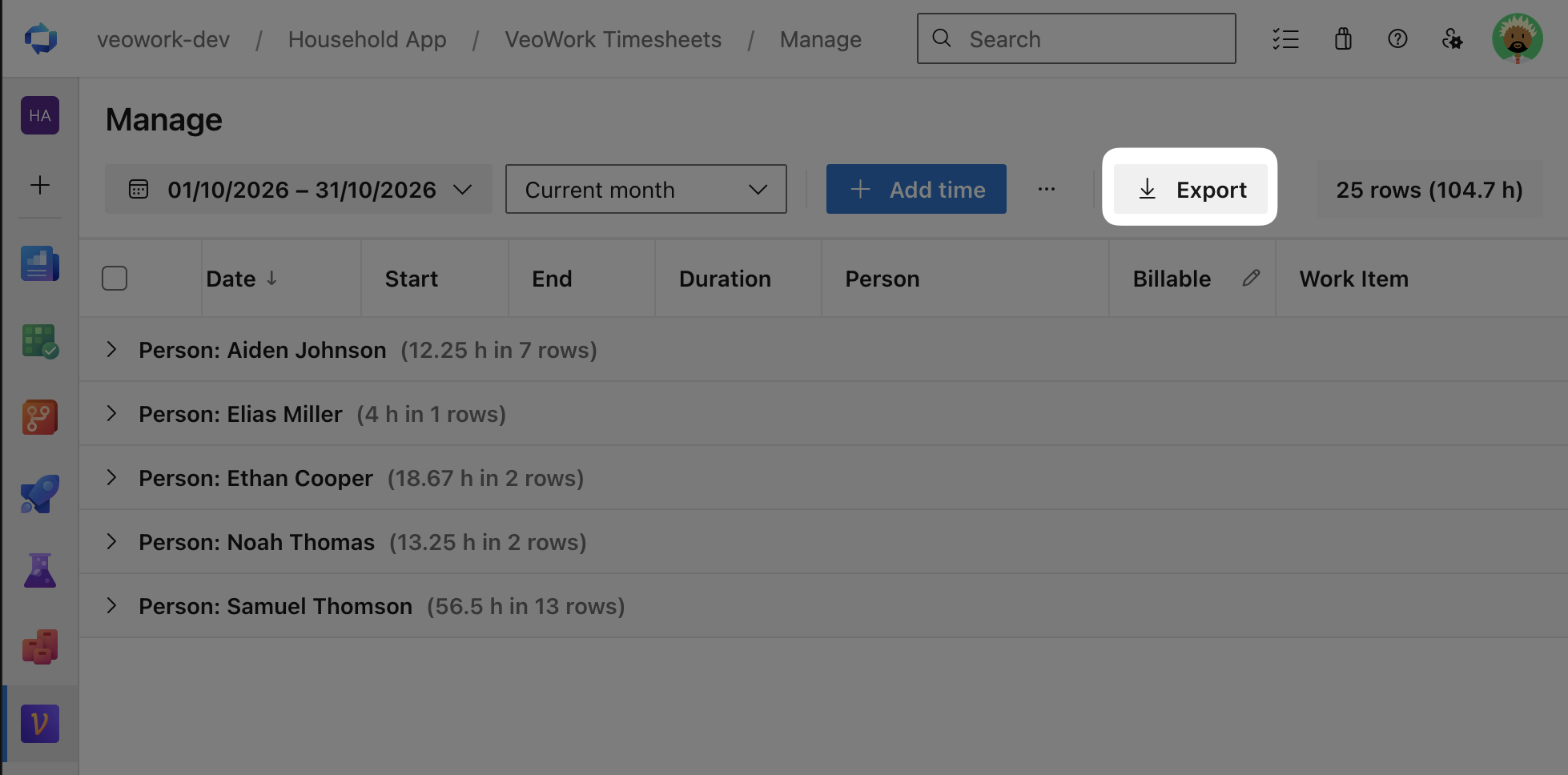
Export from Manage
Report: connect your reporting tools
The Report page offers templates for Excel reports and a history of export snapshots. Download Excel uses a reporting period or custom date range. Export history lets you download a completed snapshot again without generating a new report.
Report is in development.
Connect tools and automations with the API
Use the REST API to bring VeoWork data into your own dashboards, external tools, and automations. For example, a script can collect time entries for a weekly project report without manual exports.
Configure → API provides the API root URL, API documentation, and controls for personal API tokens. Create a token so your tool can authenticate its requests.
Reuse your 7pace Timetracker integrations
Your existing scripts and automations can be part of the move to VeoWork. VeoWork’s REST endpoints are designed for compatibility with selected 7pace Timetracker API operations, which can reduce the code you need to rewrite.
Start by checking the operations and API versions your integration uses against the VeoWork API documentation. Compatibility is limited to supported operations; changing the API root URL and token alone may not be enough.
Test reads first, then creates, updates, and deletes with disposable records in a test environment. Verify field mappings, record IDs, permissions, responses, and resulting data before enabling production writes. Our support team can help you assess your integration and plan the switch.
These compatibility features are independently developed by VeoWork and are not affiliated with or endorsed by 7pace or Appfire.
API access overview
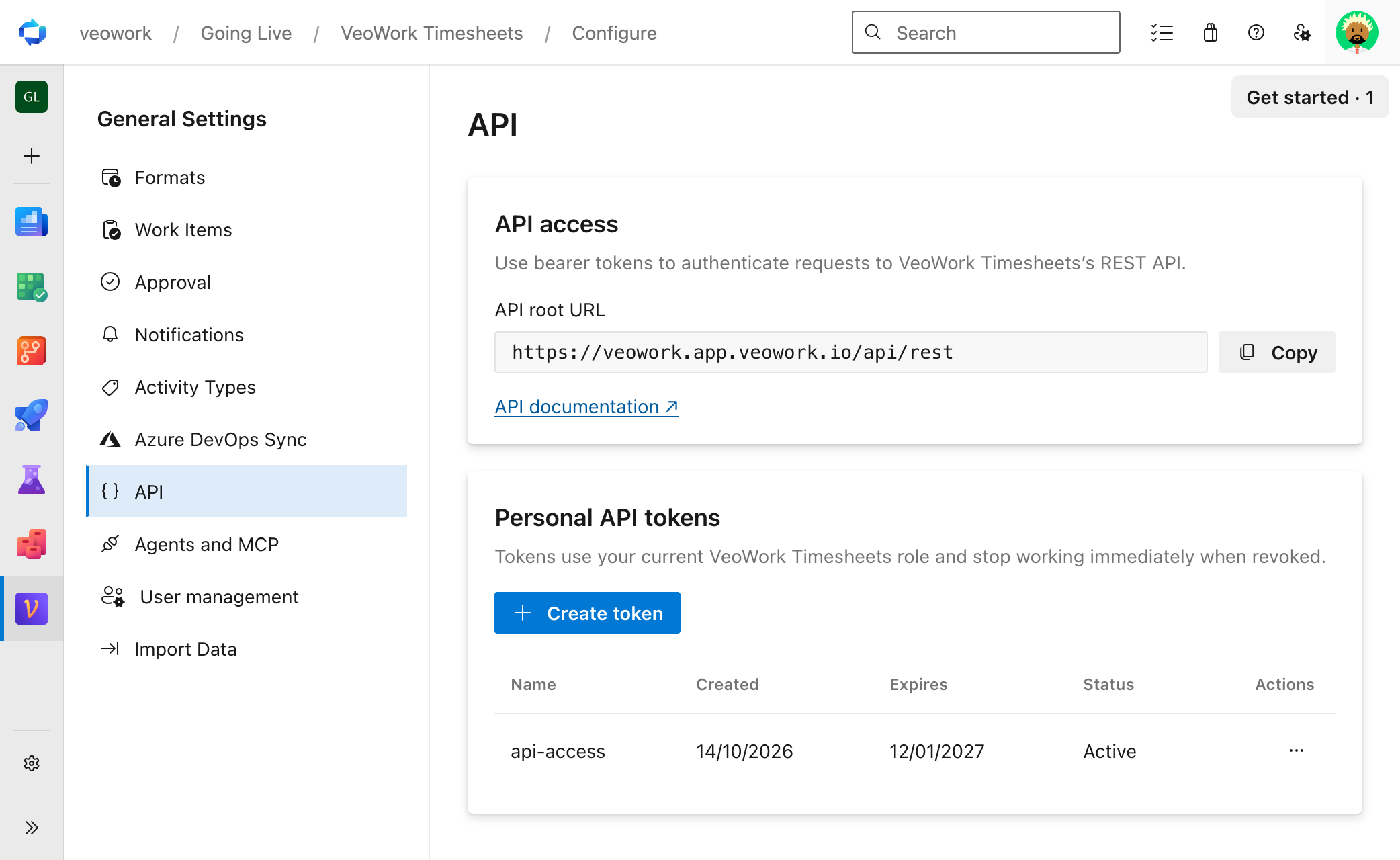
API connection details and personal token management
See Import data from other tools to bring your time tracking history into VeoWork.
7. FAQ and support
Does every team member need to configure synchronization?
No. VeoWork uses one account to synchronize data for the organization. Other team members use their own Azure DevOps accounts to access VeoWork.
Can I record time without a work item?
Yes. Entries without a work item require a comment that describes the work.
Can I bring my existing time data?
Yes. VeoWork includes a built-in import from 7pace Timetracker, and our team can help with moves from other tools. See Import data from other tools for the supported data and setup details.
How do roles affect access?
Your VeoWork role controls which pages and data you can access. The User role gives access to your own time. The Manager and Admin roles also give access to team time and budgets. Approve requires an active Approval Manager assignment.
Contact a Project Collection Administrator to review your role.
What if a feature is missing or does not work as expected?
Talk to our support team. Tell us what you need or what you expected to happen.
For a problem, include your organization name, the affected page, and the steps that led to it.